
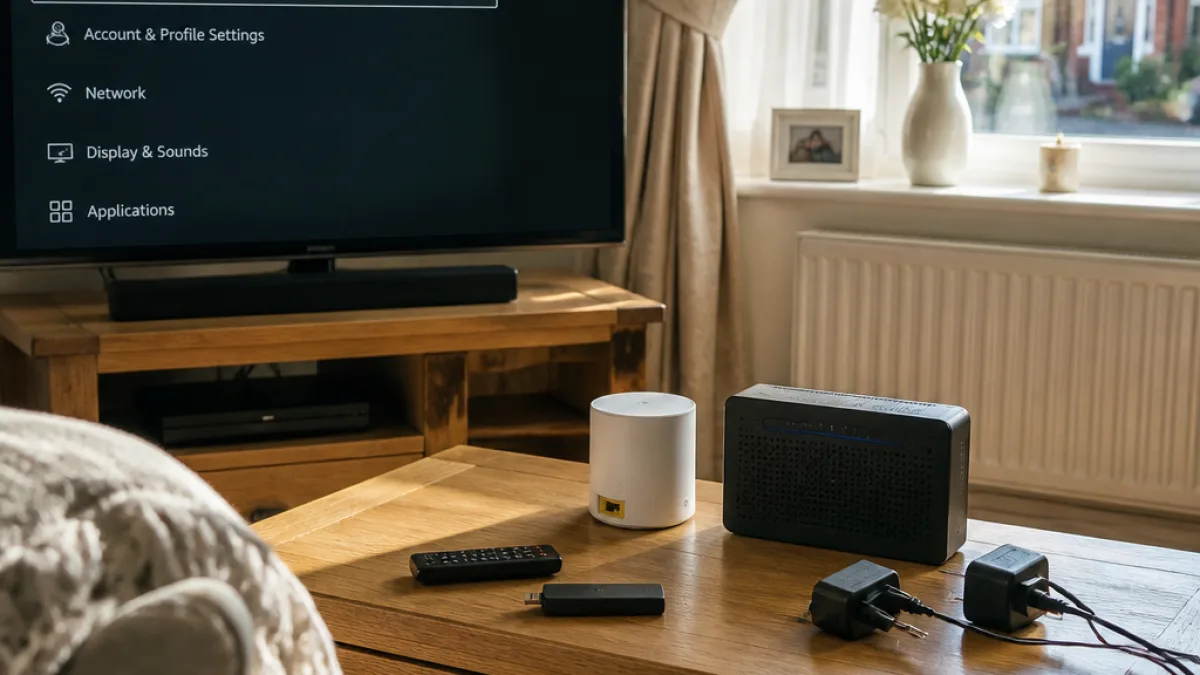
Many households in Oldham use an Amazon Fire TV Stick to stream films, watch TV and play games. When the stick starts to lag, buffer or misbehave, there are a few straightforward checks that often restore normal service without the need for a factory reset or a trip to the shops.
Pocket-lint tech journalist Roger Fingas sets out four practical steps to try first. The measures focus on clearing temporary memory, checking storage and ensuring software is current — all of which tackle the most common causes of slow performance.
Start with a full power cycle
Power-cycling clears the device’s short-term memory and can stop processes that have frozen. That means unplugging the Fire TV Stick from its power source and, if applicable, removing batteries from the remote. Fingas recommends leaving the device powerless for at least 30 seconds; a full minute reduces the risk that temporary data remains in memory.
- Unplug the Fire TV Stick and remote batteries for 30–60 seconds.
- If you have separate modem and router units, unplug both and restart the modem first when reconnecting.
- Wait until your internet connection is fully restored before powering other devices.
Clear cached data and remove unused apps
Fire TV devices come with limited internal storage — typically between 8GB and 16GB. Over time caches can accumulate and unused apps take space, which may slow the system.
To clear caches, go to Settings > Applications on the Fire TV menu and select "Clear all Application Caches". If storage is low, consider deleting apps you no longer use.
Keep apps and the OS up to date
Both apps and Fire OS should update automatically, but updates do not always install before you next use the device. Manually checking for updates can resolve compatibility issues and improve performance.
"Periodically head over to Settings -> Applications, then click Clear all Application Caches," Fingas advises.
When to consider a full reset
If the above steps do not solve the problem, a factory reset is the final option, but it will erase personalised settings and downloaded apps. Only use this once you have backed up any important account information and are prepared to sign in to services again.
| Action | What it fixes |
|---|---|
| Power-cycle | Temporary freezes, sluggish responsiveness |
| Clear caches / delete apps | Slowdowns caused by full storage or corrupted temporary files |
| Check updates | Compatibility bugs, app crashes |
| Factory reset | Persistent faults after other steps |
These measures are easy to try at home and often avoid more disruptive steps. For readers in Oldham, they are sensible first moves before seeking further technical help or considering replacement hardware.